If the in-game terminal screen appears black after an official Gorilla Tag update, ensure you have the latest Utilla build installed and that your BepInEx/plugins/ComputerInterface.dll is placed directly in the plugins folder.
🛡️ GTMods Verified Working Mod (2026)
- Status: Verified Working on Gorilla Tag Unity 2022.3 LTS
- Platform: PCVR (SteamVR, Oculus Link, Virtual Desktop)
- Safety Scan: Clean (0/72 VirusTotal Detections)
- Installation: Requires BepInEx v5.4.21+ via Monke Mod Manager
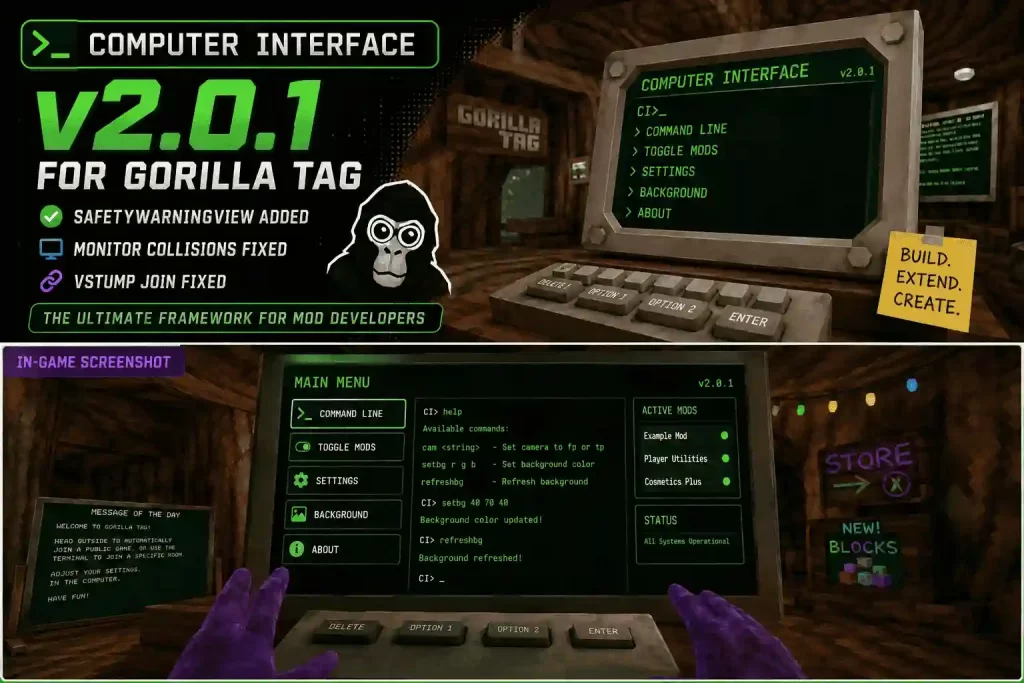
Computer Interface mod v2.0.1 replaces the default in-game computer in Gorilla Tag with a fully custom one that other mods can build on. This update fixes a monitor collision bug, fixes session joining through VStump, and adds a new SafetyWarningView that asks you to acknowledge risk before running untrusted community add-ons on top of it. Download it below and follow our install guide.
What Is Computer Interface?
Computer Interface is a library mod for Gorilla Tag that swaps out the base in-game computer for a custom one, giving other mod developers a proper framework to add their own menus, commands, and settings screens instead of everyone hacking together their own terminal UI. It’s a dependency other mods build against rather than a standalone feature mod, similar in role to Utilla or BepInEx.
What’s New in v2.0.1?
- Fixed the CI monitor not having collisions — the physical computer monitor object was passable/glitchy in the previous build; this is now corrected.
- Added SafetyWarningView — a new screen that requires you to acknowledge possible safety risks before enabling other, untrusted Computer Interface add-ons.
- Fixed session joining through VStump — a bug affecting joining sessions via the in-game stump has been resolved.
Key Features
- Command Line: Run built-in and custom commands directly from the computer screen.
- Toggle Supported Mods: Enable or disable compatible mods without leaving the game.
- Custom Background: Set a custom background image and color, refreshable in-game without a restart (since v2.0.0).
- Animated Keys: Polished, animated on-screen keyboard input.
- Developer Framework: A ComputerView / IComputerViewEntry system that lets other mods add their own menu pages and commands.
Default Commands
| Command | What It Does |
|---|---|
cam <string> |
Sets the screen camera to First Person (fp) or Third Person (tp) |
setbg <int> <int> <int> |
Sets the computer screen’s background color, e.g. setbg 40 70 40 |
refreshbg |
Refreshes the background without restarting the game |
Is Computer Interface Safe?
Computer Interface itself is an interface-only modification — it does not alter movement, speed, or visuals on its own. The new SafetyWarningView in v2.0.1 exists specifically because other mods and add-ons that plug into Computer Interface aren’t reviewed by its developer, so:
- Only enable Computer Interface add-ons from sources you trust.
- Keep gameplay-affecting mods disabled before joining public lobbies.
- Acknowledge the new safety warning honestly — it’s there to flag untrusted third-party CI fixes, not to gate the base mod.
How to Install Computer Interface v2.0.1
Automatic Installation (Recommended)
- Install and open MonkeModManager.
- Select Computer Interface from the mod list.
- Click Install. MonkeModManager will pull in everything Computer Interface needs to run.
- Launch Gorilla Tag and check the in-game computer to confirm it loaded.
Manual Installation
- Make sure BepInEx is installed and initialized (launch and close Gorilla Tag once after installing BepInEx).
- Download
ComputerInterface.dllfrom the link below. - Move the file into your
Gorilla Tag\BepInEx\plugins\folder. - Launch Gorilla Tag and check the treehouse computer — a scrollable custom menu confirms it’s working.
Customizing the Background
- Go to your Gorilla Tag folder and open
BepInEx/config/tonimacaroni.computerinterface.cfg. - Find the
ScreenBackgroundPathsetting and point it to your image (relative or absolute path). - Use forward slashes (
/) instead of backslashes in the path. - Your image is multiplied by the background color — run
setbg 255 255 255in-game to leave it uncolored. - Use the
refreshbgcommand to apply background changes without restarting the game.
Download Computer Interface v2.0.1 for Gorilla Tag
| Mod Name | Computer Interface |
| File Size | 319.59 kb |
| Updated On | August 12, 2026 |
For Mod Developers
Computer Interface is built around Views — classes that inherit ComputerView and define what shows on screen via GetViewText(), with navigation handled through ShowView<TargetView>() and ReturnToMainMenu(). You can register a new entry point on the main menu with an IComputerViewEntry implementation, and add your own CLI commands by implementing ICommandRegistrar and registering them through CommandHandler. A documented starter mod is available on the ComputerInterfaceExample GitHub repo, and the base library’s own views are browsable in the ComputerInterface GitHub repo.
Frequently Asked Questions
Computer Interface targets the PC (BepInEx) version of Gorilla Tag. If you’re on standalone Quest, check for a Quest-compatible build separately before installing.
t’s a new screen in v2.0.1 that asks you to confirm you understand the risk before enabling other, untrusted Computer Interface add-ons — it doesn’t affect the base mod’s safety.
Run the refreshbg command from the computer’s command line instead of restarting the game.
Yes — it’s designed for that. See the For Mod Developers section above for the Views and Commands framework.
Conclusion
Computer Interface v2.0.1 fixes a monitor collision bug, resolves a VStump session-joining issue, and adds a safety acknowledgment screen for third-party add-ons — while remaining the same extendable computer-replacement framework other Gorilla Tag mods build on. Download it below and check out our guide on How To Get Mods On Gorilla Tag if you’re setting up mods for the first time.